Loading weBench…
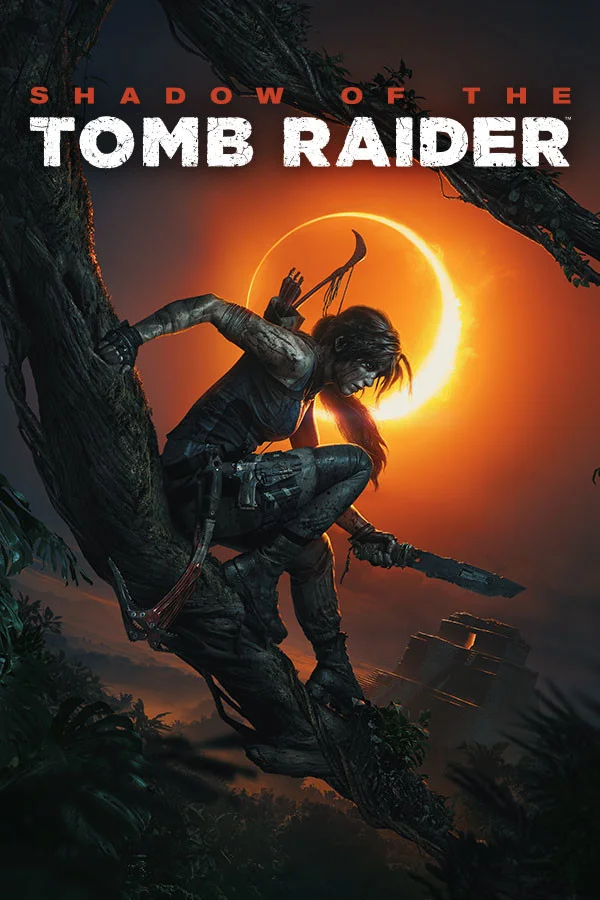
Shadow of the Tomb Raider Built-in Benchmark (Launcher Automation)
VETTEDAI-assistedv3ID: shadow-of-the-tomb-raider-launcher-automation-benchmark-20260828• Submitter: webench•Game: Shadow of the Tomb Raider
2 Safe Reviews
0 Unsafe Flags
Recipe Version History (3 revisions)
Execution Recipe Config (v3)
Executable PathSOTTR.exe
Estimated Runtime245 seconds
Score Modepresentmon
Output FileNone
Launch Arguments
##resolution## ##preset## ##api##
AI-assisted benchmark menu instructions
Launch the game and wait for the startup launcher menu with Play, Options, Official Soundtrack, Tomb Raider Website, Tomb Raider Facebook, Tomb Raider YouTube, Technical Support, and Quit. Choose the launcher menu's Options item to open the separate Shadow of the Tomb Raider Setup window. In the new window, ensure Fullscreen is checked DirectX 12 is enabled, and the configured resolution is selected. Do not click to other tabs. Click OK to save and return to the launcher menu, then choose Play. Wait through loading until the in-game main menu is visible. Choose the in-game OPTIONS item only to navigate to DISPLAY AND GRAPHICS. Ensure the resolution is set correctly, then switch to GRAPHICS and set the graphics preset. Then click the center of the visible RUN BENCHMARK button exactly once as the final action that starts the benchmark. Do not use command-line flags, do not start a new game, and do not click unrelated menu items.
Target process: SOTTR.exe
Complete JSON Spec
{
  "args": [
    "##resolution##",
    "##preset##",
    "##api##"
  ],
  "score": "presentmon",
  "weight": 1,
  "metrics": [
    {
      "id": "average_fps",
      "source": "presentmon"
    },
    {
      "id": "one_percent_low_fps",
      "source": "presentmon"
    }
  ],
  "requires": [
    "dx12"
  ],
  "time_est": 245,
  "automation": {
    "type": "computer_use",
    "instructions": "Launch the game and wait for the startup launcher menu with Play, Options, Official Soundtrack, Tomb Raider Website, Tomb Raider Facebook, Tomb Raider YouTube, Technical Support, and Quit. Choose the launcher menu's Options item to open the separate Shadow of the Tomb Raider Setup window. In the new window, ensure Fullscreen is checked DirectX 12 is enabled, and the configured resolution is selected. Do not click to other tabs. Click OK to save and return to the launcher menu, then choose Play. Wait through loading until the in-game main menu is visible. Choose the in-game OPTIONS item only to navigate to DISPLAY AND GRAPHICS. Ensure the resolution is set correctly, then switch to GRAPHICS and set the graphics preset. Then click the center of the visible RUN BENCHMARK button exactly once as the final action that starts the benchmark. Do not use command-line flags, do not start a new game, and do not click unrelated menu items.",
    "process_name": "SOTTR.exe"
  },
  "executable": "SOTTR.exe",
  "default_api": "dx12",
  "default_preset": "Highest",
  "supported_apis": [
    "dx12"
  ],
  "thread_options": [
    -1
  ],
  "api_script_values": {
    "gl": "OpenGL",
    "dx11": "DirectX 11",
    "dx12": "DirectX 12",
    "metal": "Metal",
    "vulkan": "Vulkan"
  },
  "completion_config": {
    "strategy": "process_exit"
  },
  "presentmon_config": {
    "process_name": "SOTTR.exe",
    "trim_end_seconds": 5,
    "start_delay_seconds": 18,
    "capture_duration_seconds": 182,
    "process_stability_seconds": 2,
    "capture_start_delay_seconds": 16,
    "process_wait_timeout_seconds": 330
  },
  "supported_presets": [
    "Low",
    "High",
    "Medium",
    "Highest"
  ],
  "default_resolution": "1920x1080",
  "supported_resolutions": [
    "1280x720",
    "1600x900",
    "1920x1080",
    "2560x1440",
    "3840x2160"
  ],
  "preset_scaling_factors": {
    "Low": 1.2,
    "High": 0.85,
    "Medium": 1,
    "Highest": 0.7
  },
  "allow_custom_resolution": false,
  "limit_resolution_to_monitor": true
}
Community Safety Review
Sign in to submit a safety vetting review.
Sign In / RegisterCommunity Reviews (2)
[🤖 AI Safety Audit - deepseek/deepseek-v4-flash-0731] ✓ SAFE (Confidence: 100%): The recipe is a standard benchmark automation for Shadow of the Tomb Raider. It only involves launching the game, navigating its GUI menus, configuring display/graphics settings, and running the built-in benchmark. No shell commands, downloads, credential access, or suspicious system interactions are present.
webenchSAFE
[Admin Verified] Unilaterally verified by admin.